
Deleting Transactions
How To Delete A Transaction
-
Go to Transactions tab: https://app.rollcredits.io/transactions
-
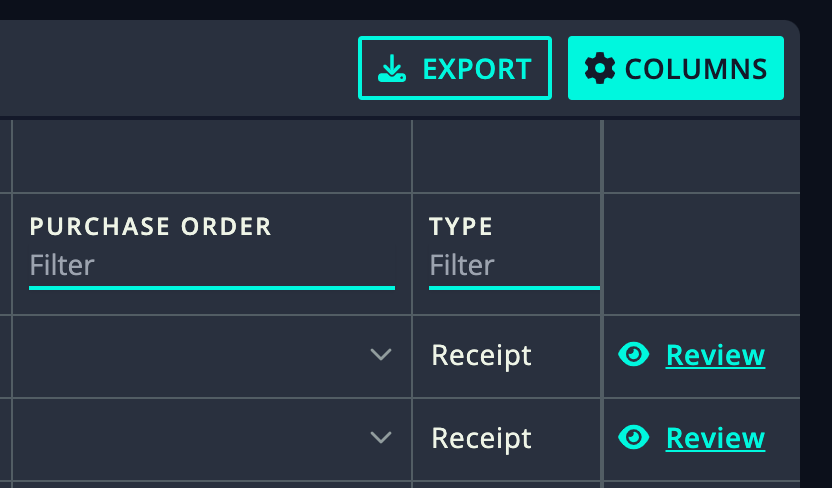
Find the transaction you’d like to delete and select “eye icon” on the right hand side.
Go to Transactions tab: https://app.rollcredits.io/transactions
Find the transaction you’d like to delete and select “eye icon” on the right hand side.
-
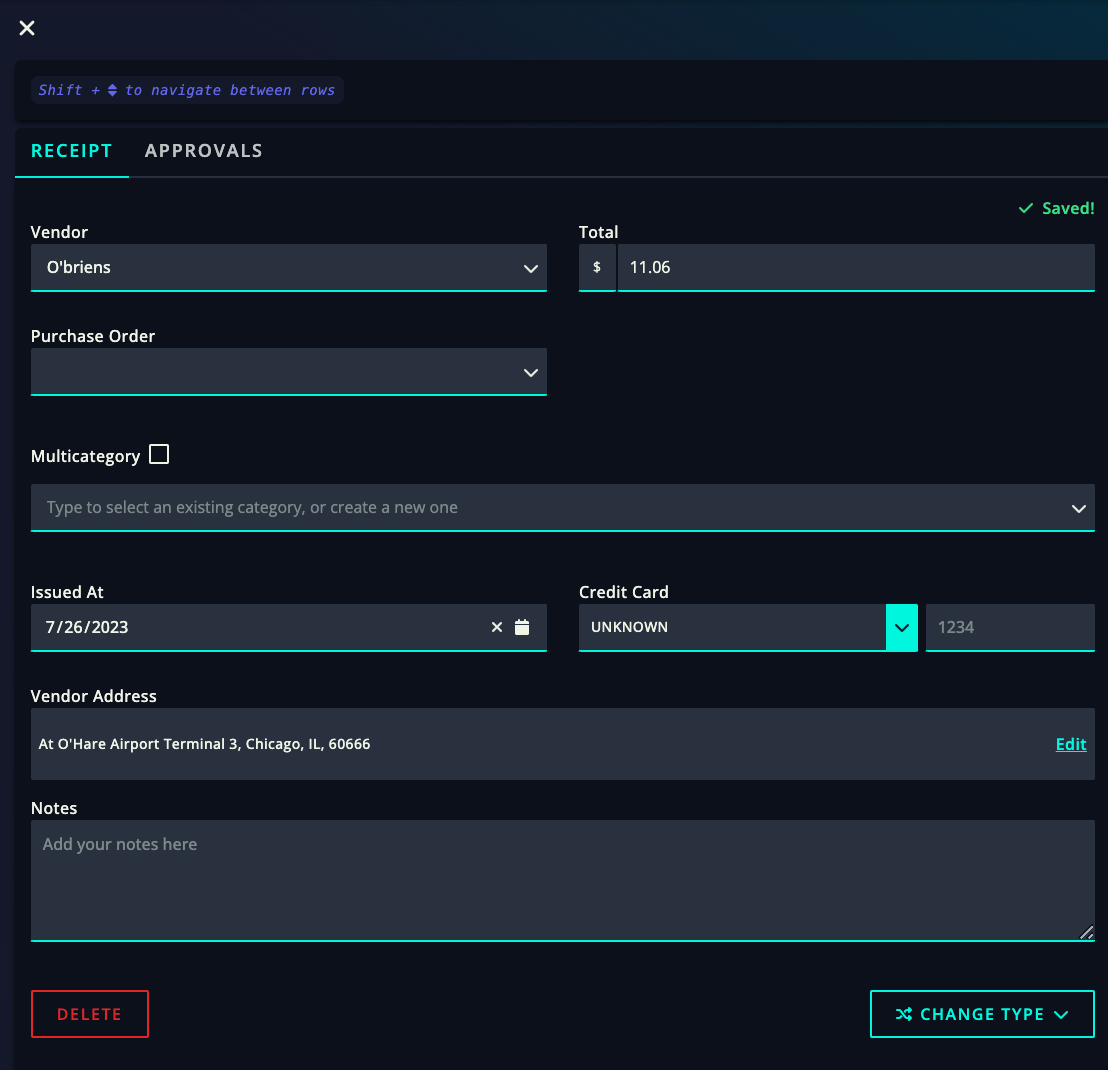
A window will pop up on the right and it will be titled either Receipts, Estimate or Invoice, depending on the type of transaction.
A window will pop up on the right and it will be titled either Receipts, Estimate or Invoice, depending on the type of transaction.
-
Scroll down to find the “Delete” button on the lower left hand side of the pop tab and click “Delete.”
Scroll down to find the “Delete” button on the lower left hand side of the pop tab and click “Delete.”
-
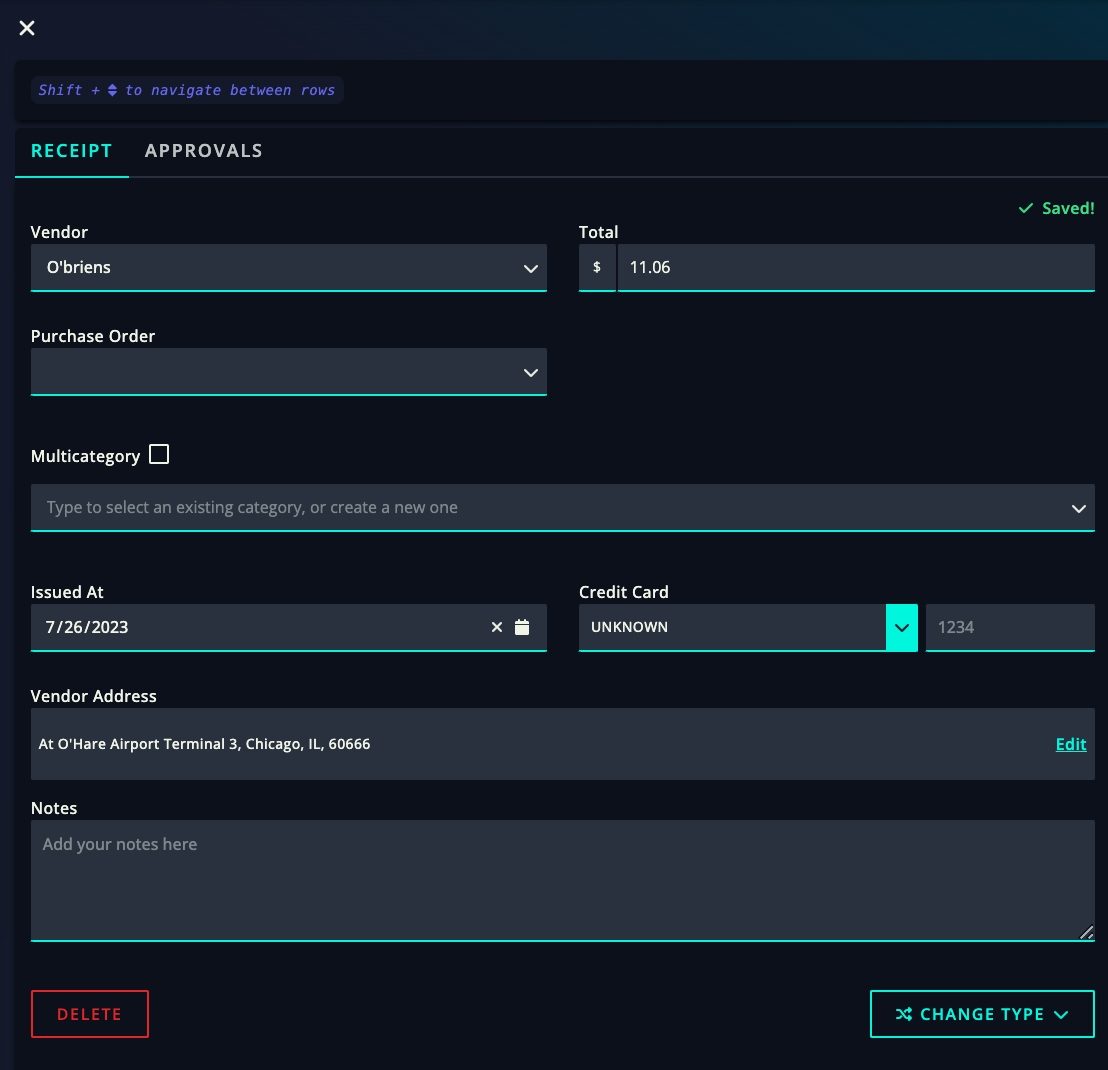
A pop up will appear asking you to confirm if you’d like to delete the transaction or not. Clicking “Confirm” will delete the transaction.
A pop up will appear asking you to confirm if you’d like to delete the transaction or not. Clicking “Confirm” will delete the transaction.